Yes. Schools and districts can purchase a site license for the Spalding App, and all of our membership types are eligible for site‑license pricing. This allows your organization to choose the membership level that best fits your needs while still benefiting from school‑wide access, simplified management, and discounted rates. If your school is interested, contact our team and we’ll help you explore options and provide a customized quote. To learn more about why a site license may be the right fit for you please visit our site licensing page.
The Spalding Phonograms App is available in Spalding’s Membership portal for the Web-Based App version.
The Spalding Phonograms App requires Apple iOS 7.0 or later. It’s compatible with iPhone, iPad, and iPod
touch.
If the text is not displaying, check your display settings to make sure your phone is in light mode. If the sound is not working, check your sound button on the side of your phone. The phone cannot be in silent mode to hear sound.
The purpose of the Learning Management System, LMS, is simply to facilitate coursework during the course. Once a participant receives a final grade and certificate from the course, the course may be removed. We do not expect a participant to access his/her course after the course is completed. It is best practice to save all assignments uploaded into the LMS to a personal computer in case resubmission is necessary.
Class attendance and punctuality are imperative for optimal course success. Should you need to miss a class, please email the course instructor for further information regarding grade reduction and make-up assignments. Please refer to the Reading Foundations Hybrid Participant Workbook for specifics.
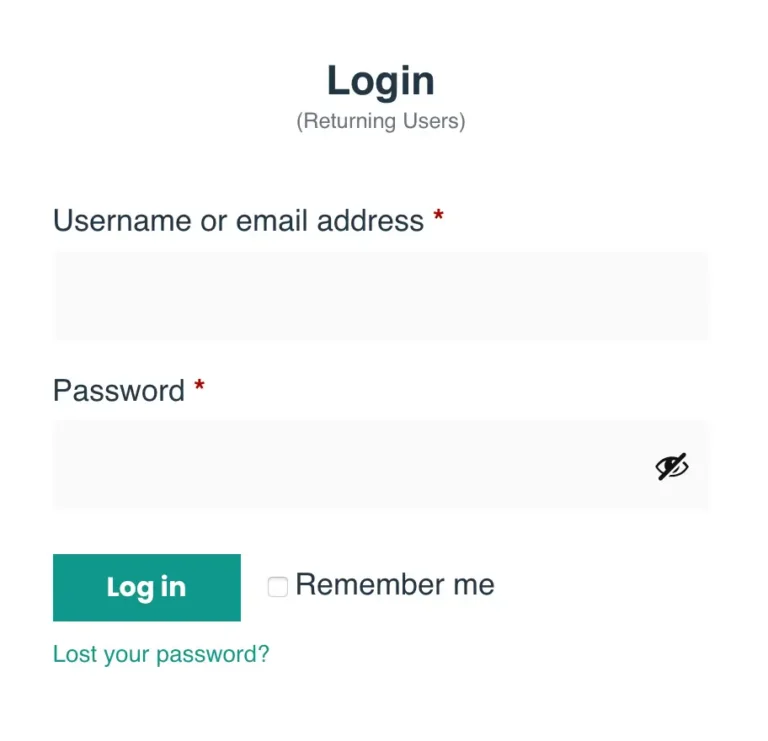
A student can log in on the My Account page.
A student can log out by navigating to the My Account page, scrolling down, and clicking on the logout link.
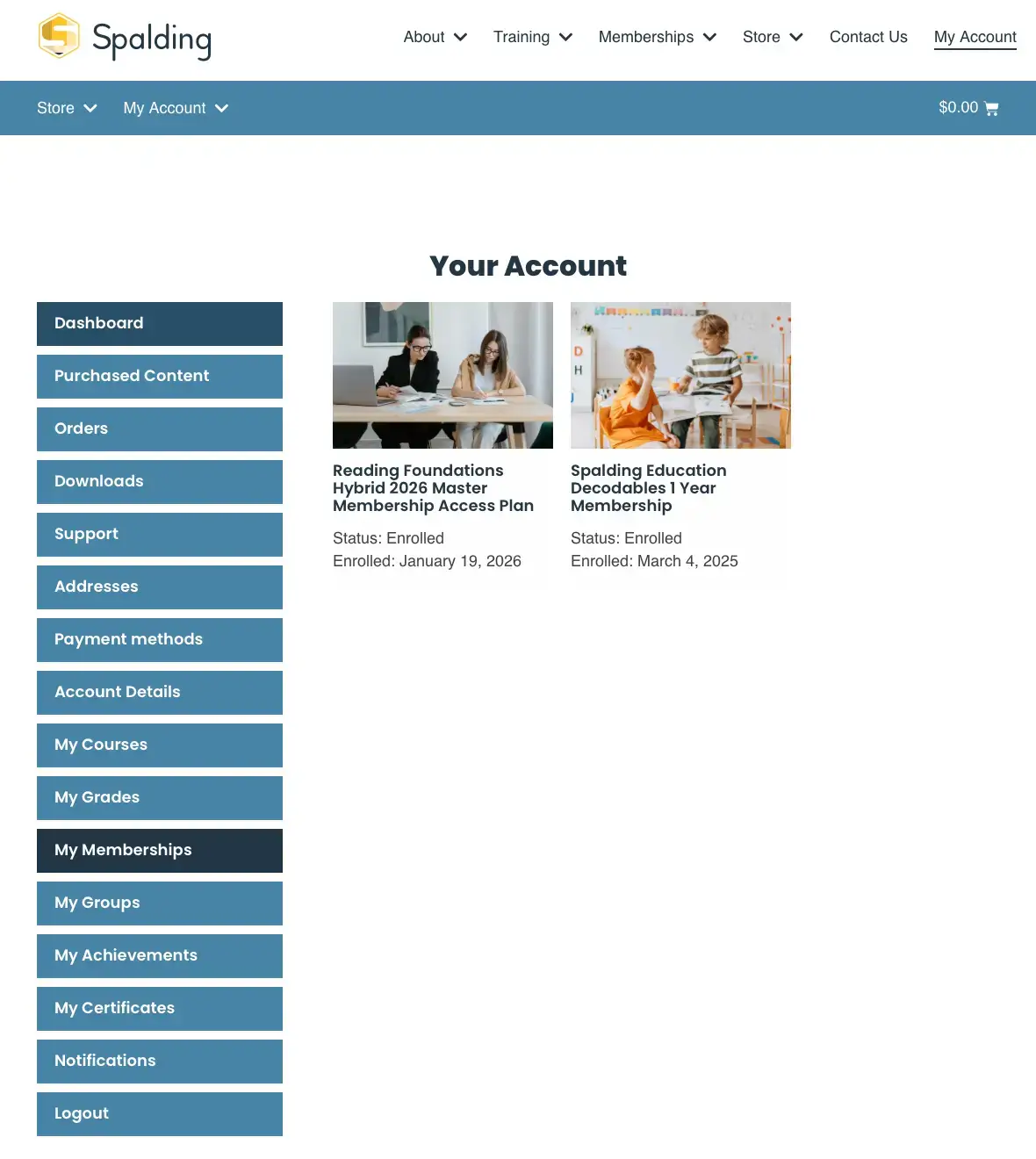
Once logged in, students land on a personalized dashboard showing their courses and progress. From here, every tab leads to a different part of their account. This area is divided into several sections that enable students to view their specific data. To find it, go to My Account, then click on My Courses or My Memberships
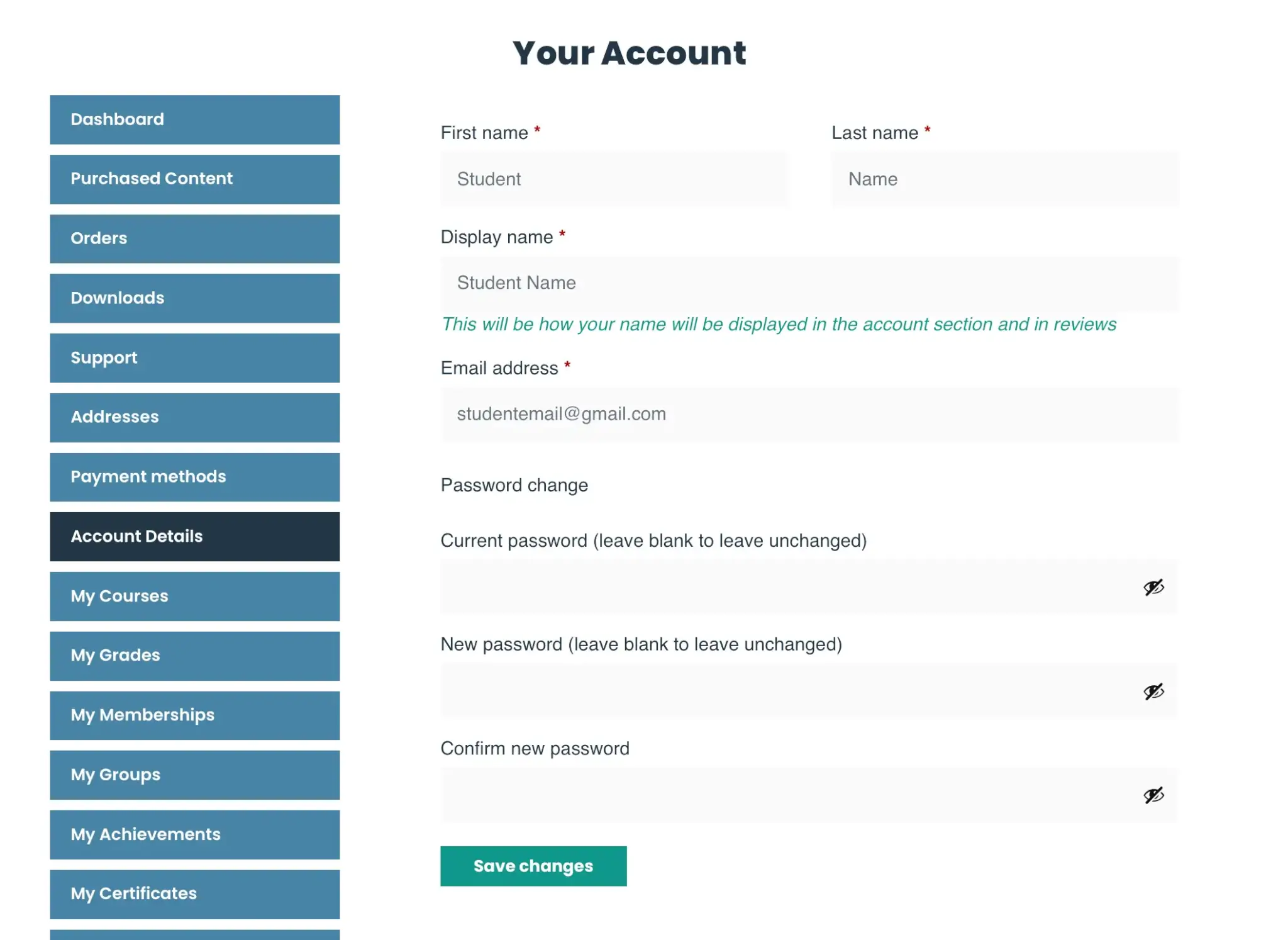
A student can change their password by doing the following:
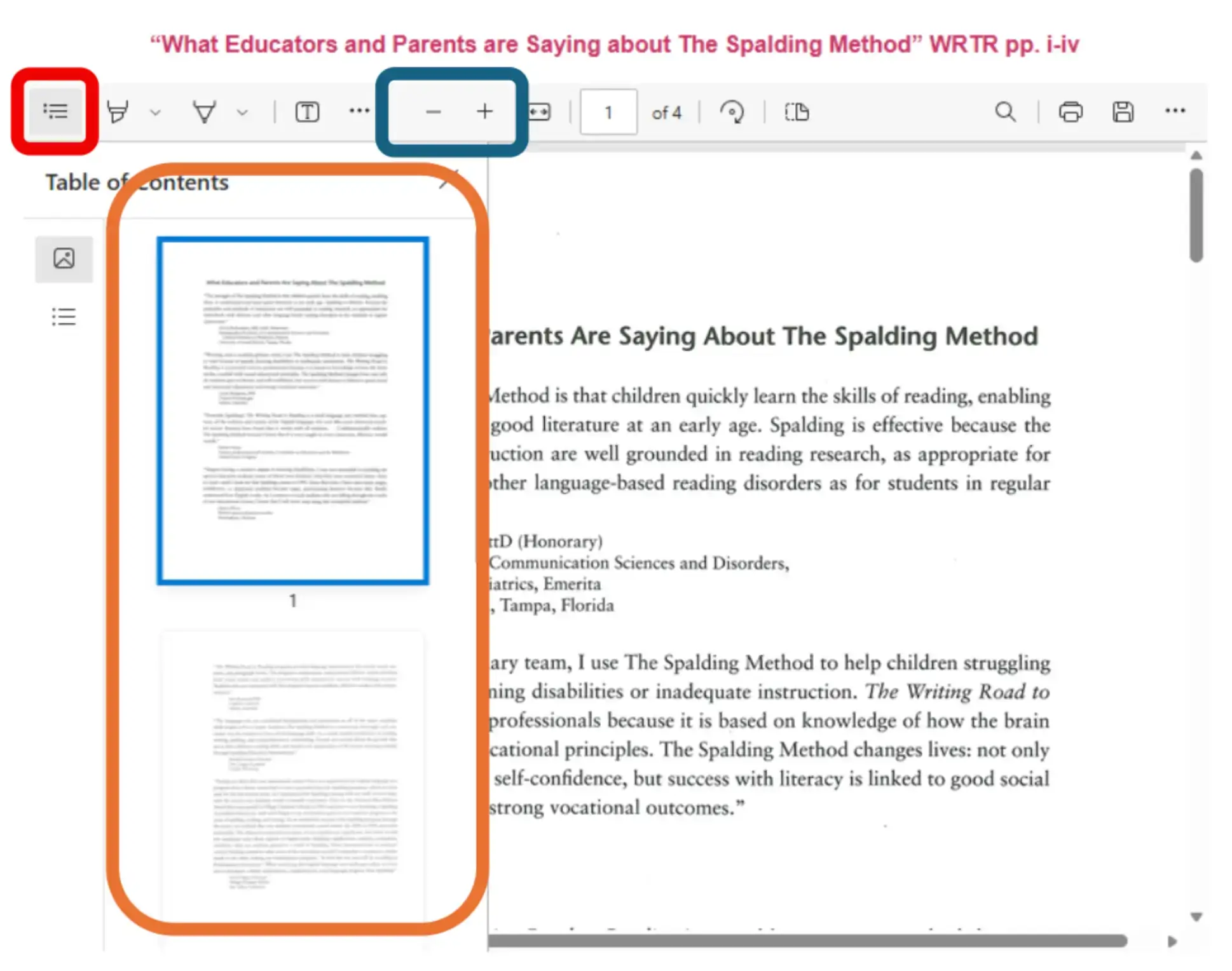
The PDF view in the course may look a little different depending on the browser being used.
Use the icon in the top-left corner (shown in red box above) to show or hide the thumbnail images (shown in the orange box above).
Use the – and + buttons in the toolbar to zoom in or out on the PDF (shown in the blue box above).
Alternatively, click on the title link to open in a separate tab.